Connect to EVERESTGAMES
-
On your dashboard click Start Instance to start your EVERESTGAMES Instance and wait until its status changes started. This may take a few minutes.
-
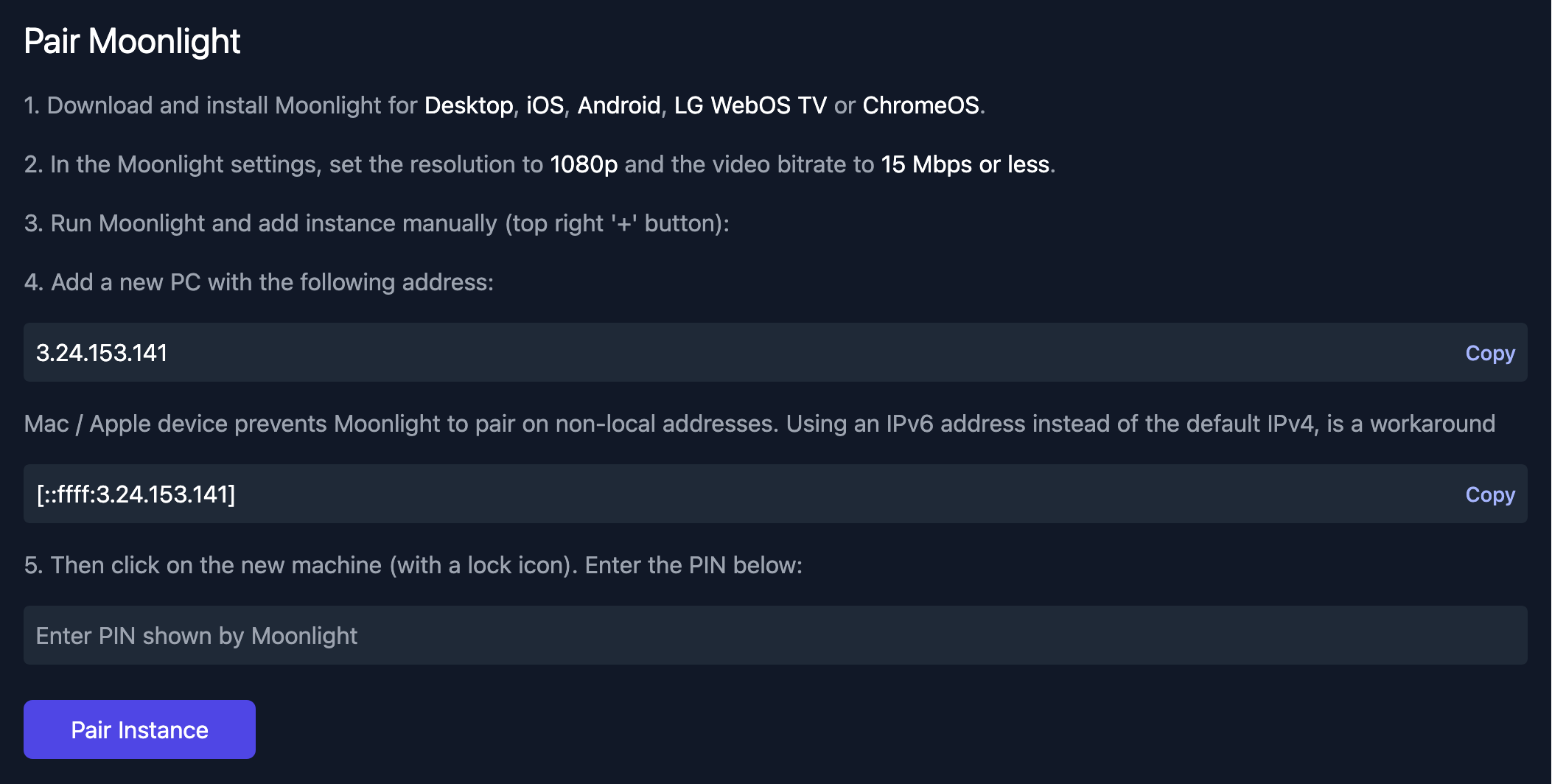
Click the Pair Moonlight button which will open a page that shows the steps to connect to your EVERESTGAMES Instance with Moonlight, an open-source streaming client optimized for gaming.
-
Download and install Moonlight if you don't have it installed already. Moonlight is available for your Desktop, iOS, Android, LG WebOS TV or ChromeOS devices.
-
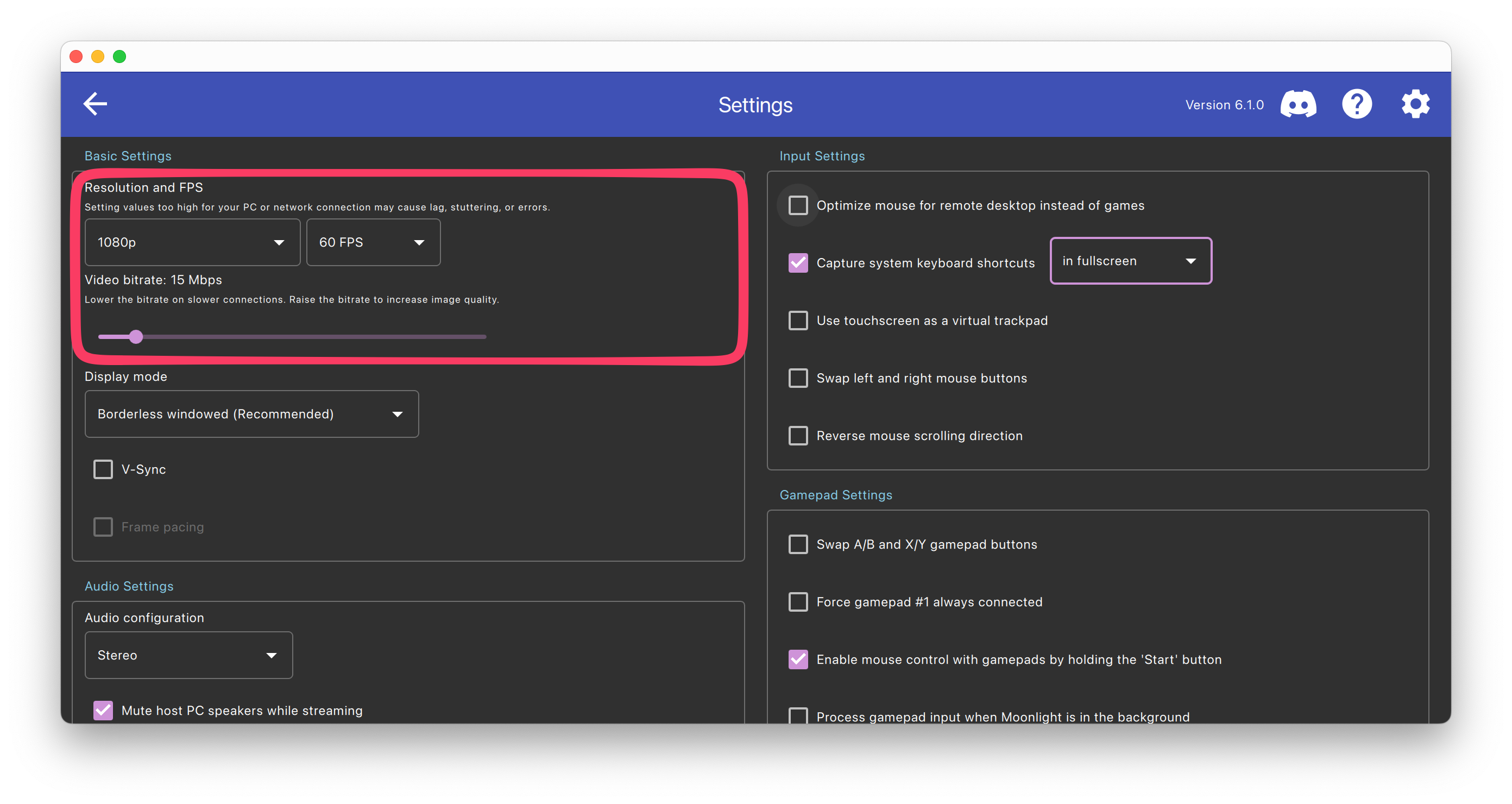
Open Moonlight, navigate to the Settings screen and set the resolution and bitrate as specified on the Moonlight connection dialog.
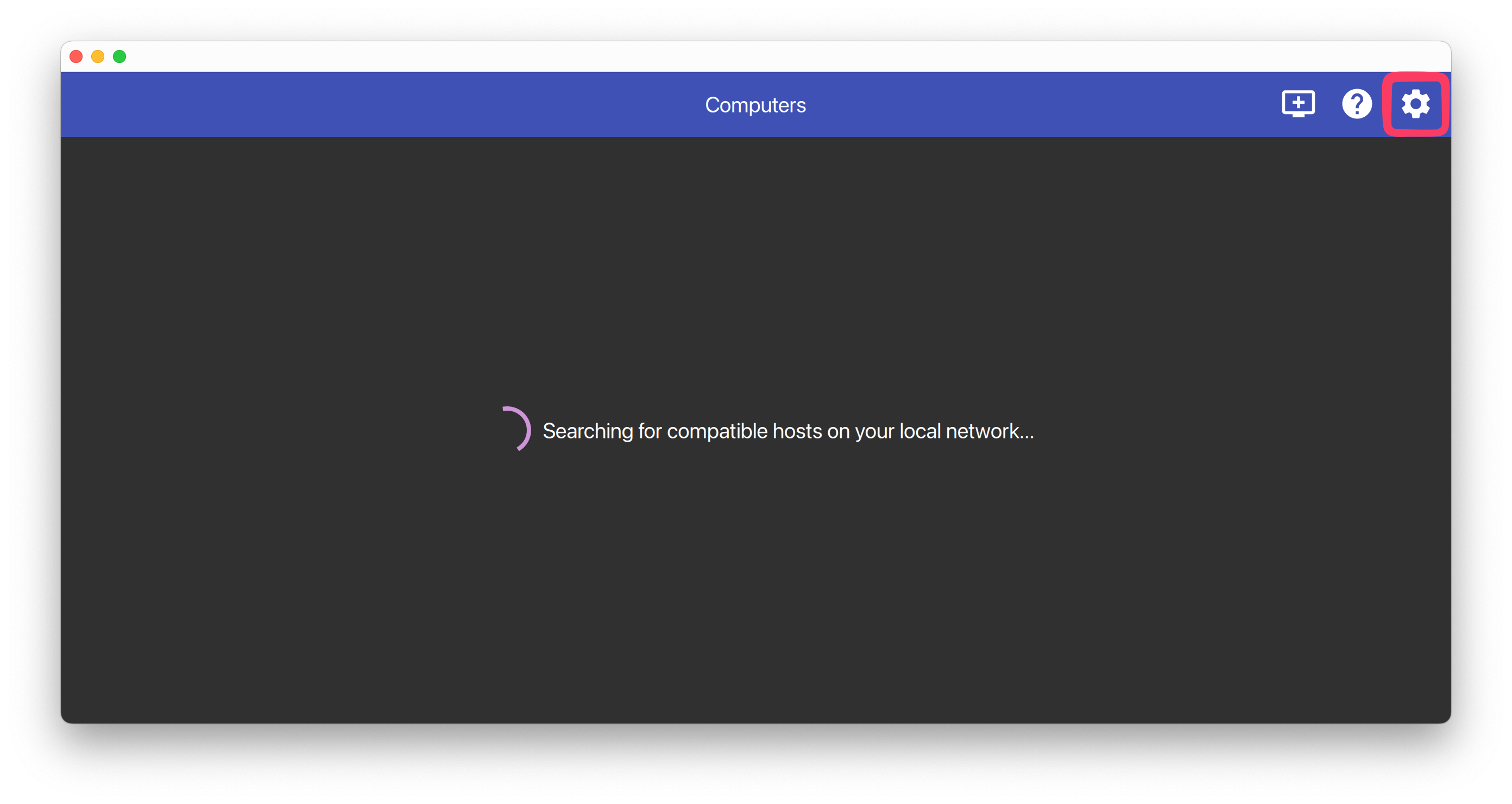
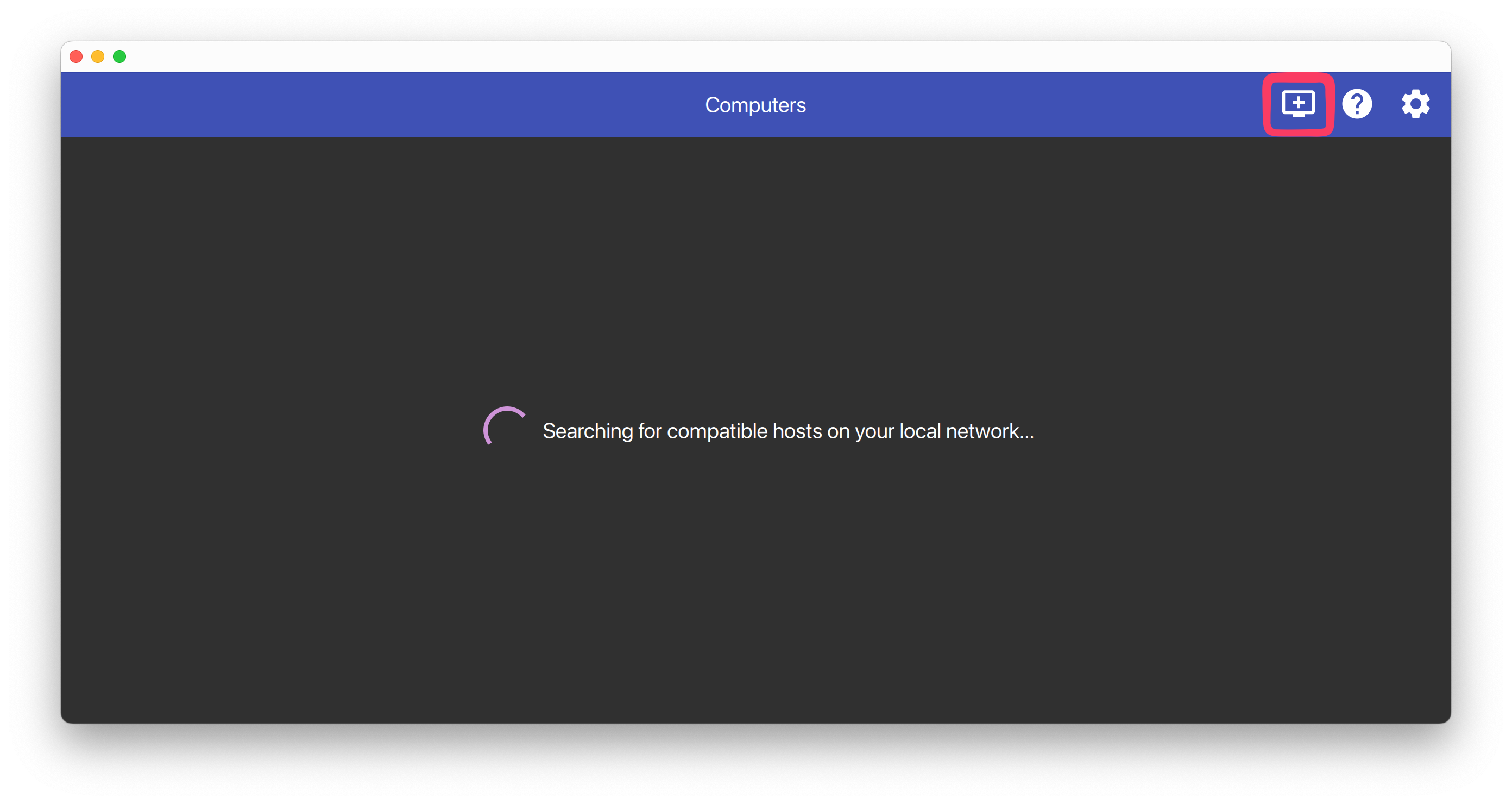
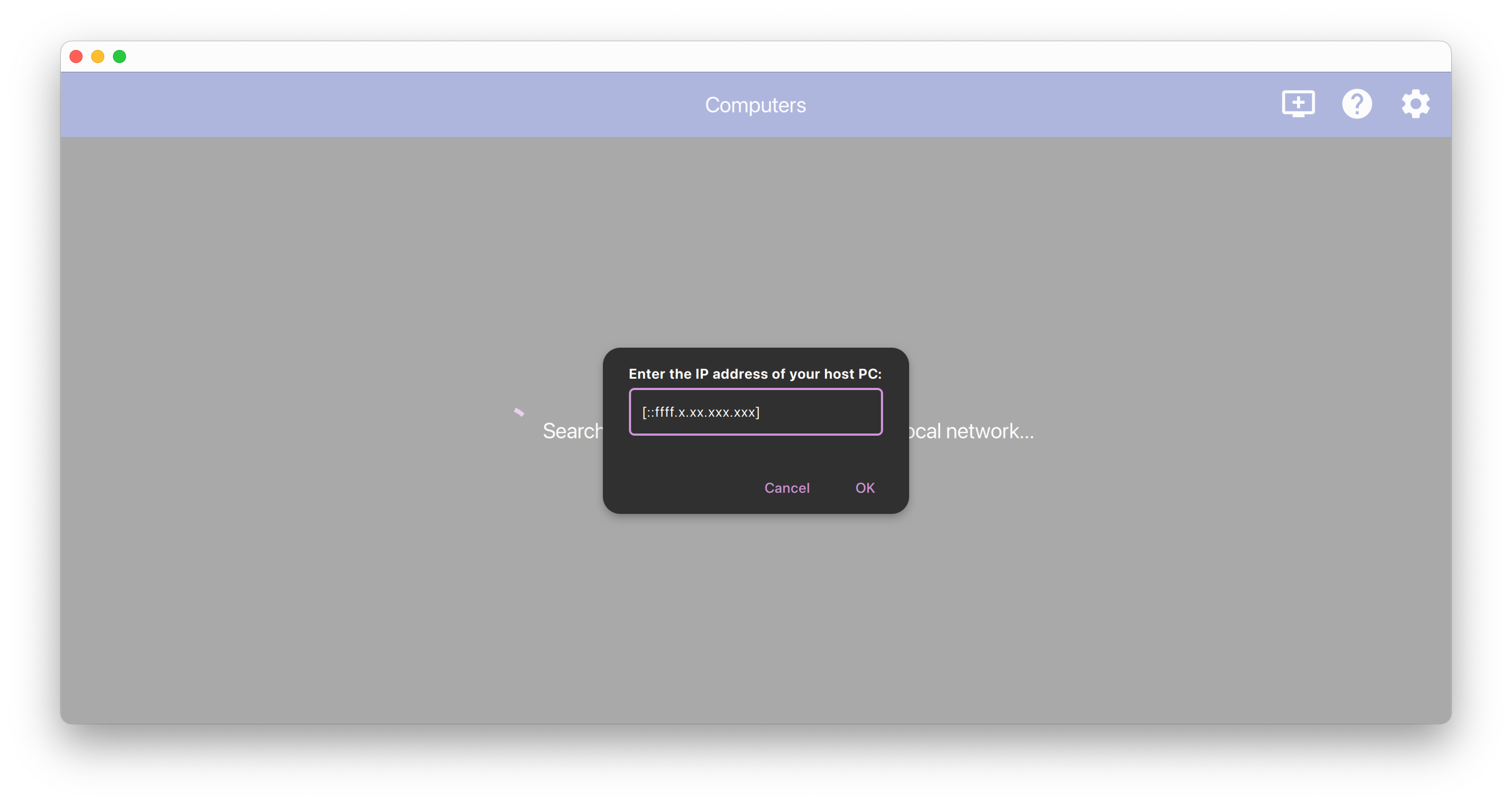
- Navigate back to the main screen and click the + icon to add a new PC to Moonlight. Copy and paste the IPv4 (non Apple Devices) & IPv6 (Apple Devices) that is shown on the Pair Moonlight page and click OK.
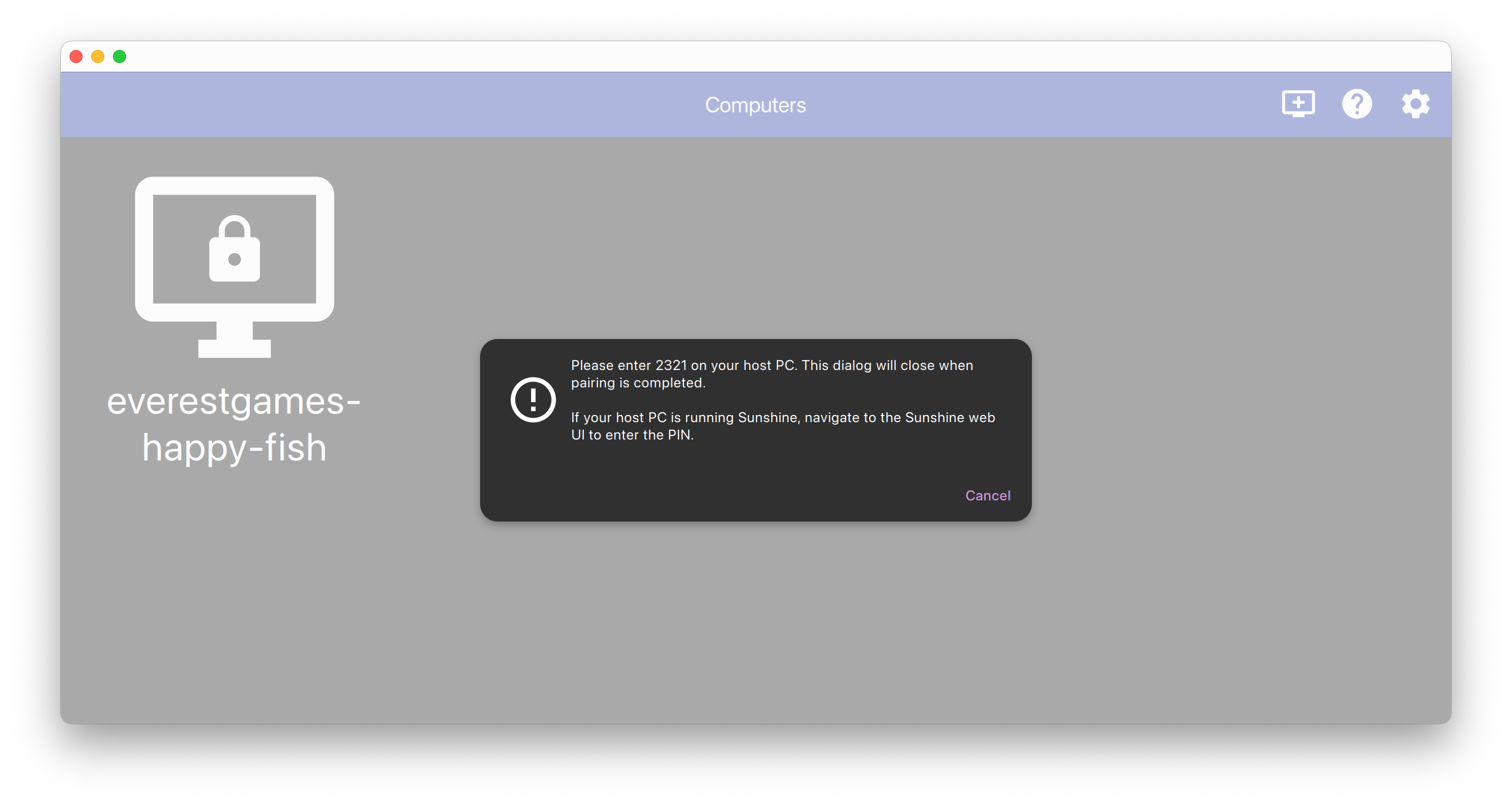
- Your EVERESTGAMES Instance will now show up on the Moonlight main screen with a lock symbol. Click on the PC and you will see a dialog that shows the PIN required to connect. Copy the PIN.
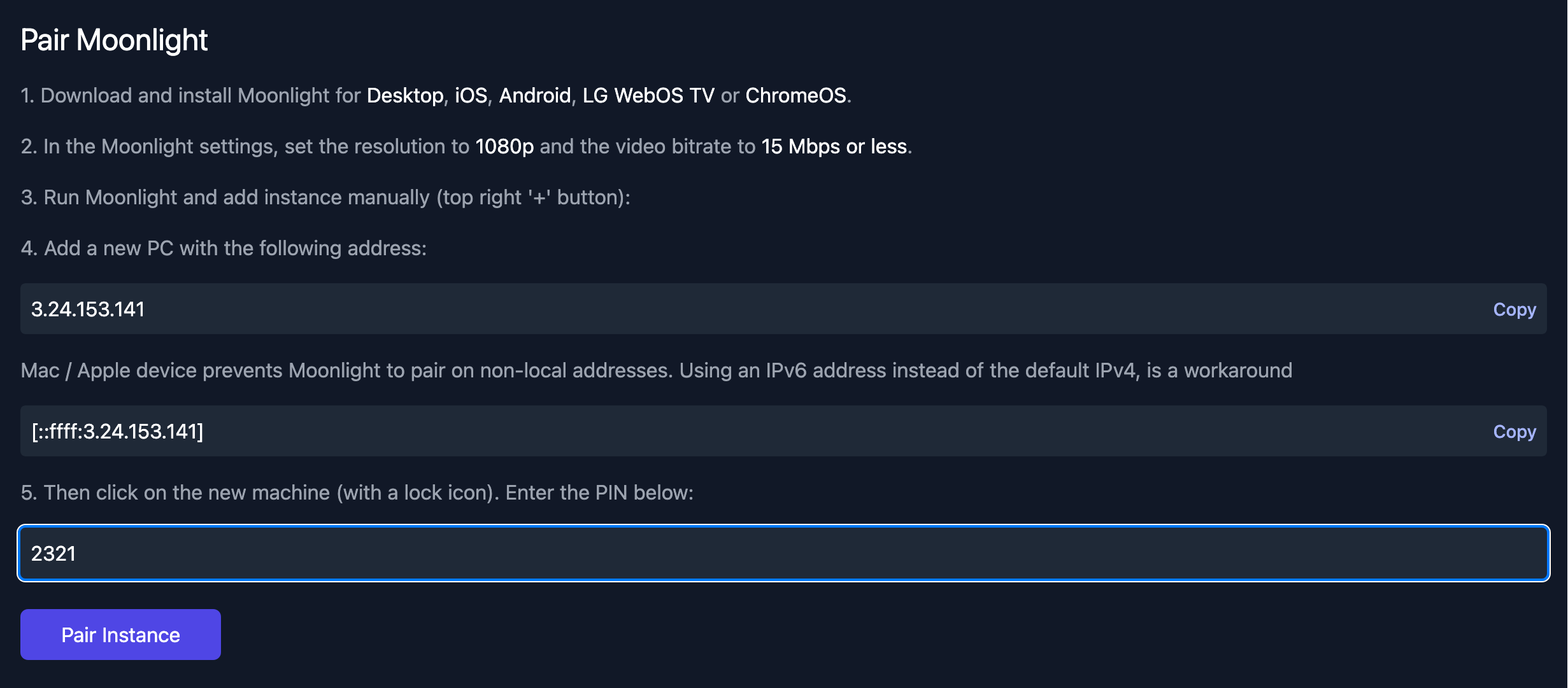
- Switch back to your browser and paste the PIN to the PIN field on the Pair Moonlight page. Click Pair Instance.
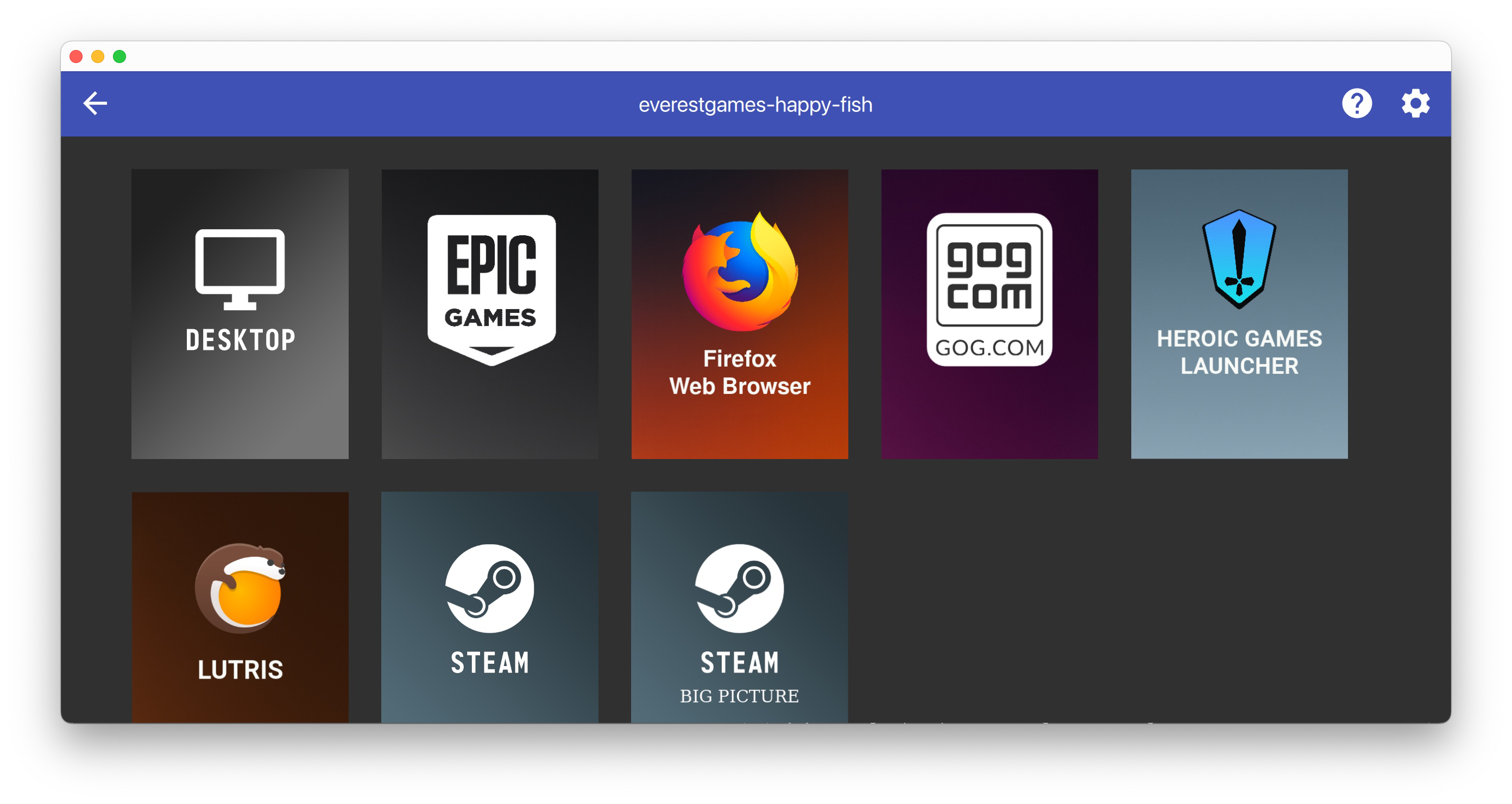
- Switch back to Moonlight and wait until the lock symbol disappears from your PC. Click on the PC and then click Desktop or your favourite launcher to connect to your PC. You can now start installing & playing games. Once you're done gaming, don't forget to click Stop on the dashboard to stop your EVERESTGAMES Instance. Happy gaming!
For future sessions, you won't have to repeat steps 1-7 anymore. Just start your EVERESTGAMES Instance from the dashboard and wait until it shows without the lock symbol in Moonlight before connecting.